Showing posts with label Norman Modification. Show all posts

Saturday, January 12, 2013

A Tea Time 'How To': Modifying the Norman Rig - Part II - Modifying!

For those of us who chose to take the time off during finals last semester, we had the pleasure of joining    the charming AAU alum - turned PIXAR intern - turned PIXAR animator Joey Gilbreath, as he walked us step-by-step through the modification process. The following tutorial is courtesy of Joey which is courtesy of a conglomeration of knowledge he has obtained over the years.


Step 1: Required Materials

- Maya
- Nart rig separated body mesh (DOWNLOAD HERE)
- A full turnaround, or at least front and side images of the character you're looking to create.
- Norman!


Step 2: Create a Template File

Setting up a template file will be helpful for you when you start modding Norman on a regular basis. No matter what your mod, these first few steps will be the same, so might as well get them out of the way, save out the file as a template file, and save yourself the hassle in the future!

- Open a new file Maya and Import your assets:
            - Import the Norman rig
            - Import the Nart body mesh

- Create a Blend Shape of the Norman body mesh. This is to prevent tampering with or ruining the actual rig, so as not to wreak havoc on your future animation.

- Separate each asset into layers so you can easily hide/unhide each as you so desire.
             i.e the Norman Mesh still attached to the rig on one layer (not including the head, hands or feet), the Norman blend shape on another, the Nart Mesh on another.

- Save under any name that you will remember.
             i.e. NormanMod_Template.ma

Template File with the Nart mesh (seen highlighted) placed over Norman on the left , and the Norman Blendshape on the right.


Step 3: Set up Your Reference

First things first -- Save under a new name. You don't want to ruin your template file, because that will be the start of all your future animations.
             i.e. Natman_NormanMod_01.ma

Now it's time to set up some image planes with your reference images of what the character will look like. You can do this one of two ways, I'd suggest setting up some image planes, but you can also project each one as a texture if you'd prefer. No matter what you choose, make sure you have two planes, one on your x-axis (for your profile reference) and one on your Z-axis (for the front reference).


File with reference planes set up

Step 4: Sculpt the Nart Mesh

- Turn your undo's to infinite! This is so important, really, for anytime you are working. Particularly in a step like this where it's easy to go too far, it's nice to get back to a place using an infinite amount of "ctrl+z". This will be under "Undo" in your settings and preferences.

Save. In case you haven't noticed, you should really be saving all the time. To make this easier on yourself, turn on incremental saving by clicking the option box and turning it on. This will create an "incremental saves" folder wherever you are saving the scene, and enables you to just hit "ctrl+s" every time you want to save something without re-writing anything. Plus, every once in a while, just for good measure (before going to lunch, taking a break or leaving for the day), I'd actually Save as... and change the increment at the end of my file name.
              i.e. Natman_NormanMod_02.ma

- Hide the Norman Body Mesh so it doesn't get in your way. You can do this by clicking the "V" on the layer you have the Norman Mesh on.

- Optional: Texture the polys on Nart using lamberts to block out the basic shapes you'll be looking for -- even if it won't be perfect for now, it will help you to keep it in mind.
              i.e. For this version of Batman - Black for boots, gloves, undies, mask. Grey for main body - legs, arms, torso. Flesh toned for the lower half of the face.


Basic textures applied


Sculpt. It will help if you have a bit of modeling knowledge for this step, but if not, it's time to familiarize yourself with the sculpt deform tool! It's it what will get you about 90% of the way there. Remember to be delicate with it (and again, save often). It's easy to go too far, but this step is all about patience and getting your rig there one click at a time.

- The Sculpt Geometry Tool has a variety of settings, and you should make sure to test it out first before putting it to use. Here's a brief overview of the capabilities:

Push: Pushes the geometry away from your brush (in)
Pull: Pulls the geometry towards the brush (out)
Smooth: Will round out hard edges into something more manageable.
Relax:  Will recede and smooth your geometry.
b + left click: Changes your brush size.


 Sculpting the Nart mesh! Make sure to change views often.


Another helpful option is the Reflection Tool. This will reflect your brush on both sides of your model so you don't have to spend a lot of time trying eye the symmetry. It can be found in the tool settings under Stroke. But careful! If your mesh is not perfectly symmetrical, you could get some funky shapes goin' on when you get to shifting verts around point-by-point.


Reflection tool can be seen in under stroke in the tool options (left hand column. Accessed by double-clicking the tool you're interested in.)

Things to keep in mind: 
- You want to make sure you are using a combination of the tools.
                i.e.Work the geo, then relax it, work the geo, then relax it.

- Keep changing views. If you are constantly working from the front view, it's tough to tell what kind of damage you're doing to the work you already put in on the side! Make sure you keep switching back and forth, and even working in the perspective window.


Step 5: Modify your Norman Blend shape

Save.

All modification to the norman rig (Hands, Feet, Face) should be done via the blend shape you created. This will prevent you from destroying any of the actual rig, which could easily break and become unusable for your animation.

Using the Norman Blend Shape, Scale the mesh to fit as closely as you can inside your modified Nart mesh. This will make for a cleaner wrap!


Modifying the Norman Blendshape to fit the sculpted Nart mesh.


Be warned of the following sensitive areas:

-The mouth (the entire face, really) is a highly-rigged area, thus it's best to do your best to leave it alone. Feel free to mess with the forehead and the cheeks within reason, but do try not to tamper too much. You may notice that Norman's nose is a separate geometry. To modify his nose, I'd suggest creating an entirely NEW nose and sticking it on later.


Putting red around the polygons of the mouth on the blendshape helps to remind yourself to avoid modding that area.

- The feet also have a ton of controls -- Ball roll, foot twist, toe tap, etc -- that could easily break if you change the foot too much. Thus, again, try not to change the orientation or the size too dramatically or you could be animating with out them.


Step 6: Extras!

Save.


Does your character have gloves, boots, sashes, belts, watches, or any other sort of extraneous detailing in the clothing? No problem!

For gloves/boots: Simply select the faces around the calf and/or forearm and duplicate. Scale the duplicated faces so they hover closely to the surface of the Nart Mesh, and then move vertices around as necessary to create the look that you want. We can wrap these on top to add a little flare, and so your mod isn't just wearing the equivalent of body paint.


Sashes, belts or clothing details: You can also create the details out of other objects like a torus or a cylinder etc, depending on your needs. Just make sure you model them almost like they are a part of the Nart Mesh you modified and then we can wrap those on top, too!


Watches and the like can simply be parented to the wrist using constraints. (Demo coming, Spring 2013)


Step 7: Prep for the Wrap

Save. (I'm sounding redundant, but you'll thank me later)

If your character is wearing clothes or gloves or boots, you should hide all the extraneous geo that will not be seen beneath them. You can do this by creating a new texture that is completely transparent and applying to the faces. Not all wraps are perfect and sometimes the extra geo can intersect what is visible, so might as well get it out of the way.

Delete history and Freeze Transformations on all geo to be wrapped. (NOT THE NORMAN MODEL OR BLENDSHAPE)

- Select all geo.
- Modify, Freeze Transformations
- Edit, Delete By Type, History


Freezing Transformations
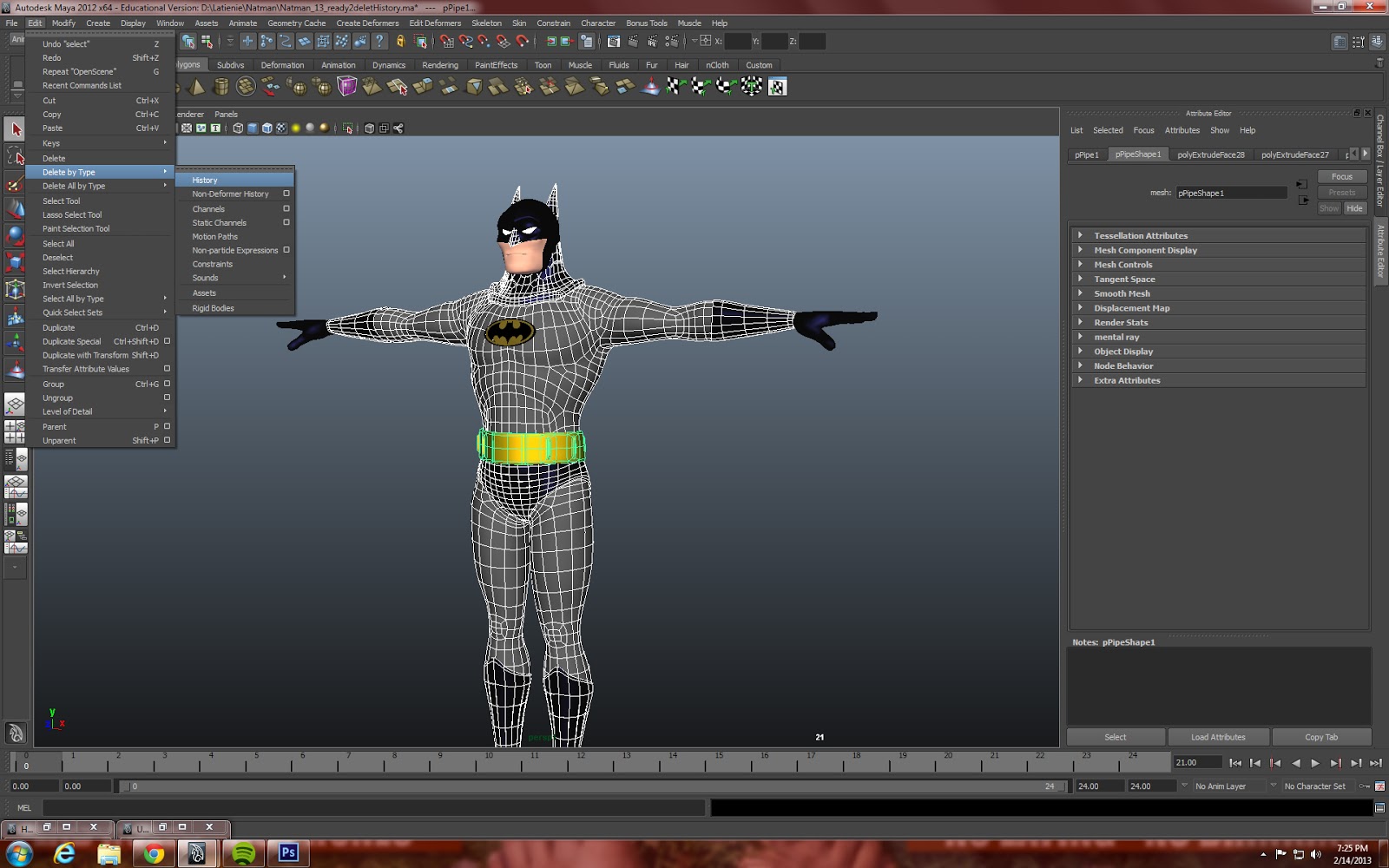

Deleting History

Step 8: Wrap

Save.

To wrap:

- Select Nart mesh
- Select Norman Rig mesh. You will notice he is in pieces, start anywhere, you only need to select one piece of it. i.e. forearm
- Make sure you are under the animation tab, then Create Deformers > Wrap


Creating our wrap

Deselect all.

- Select Nart mesh
- Select the next piece of the Norman Rig mesh.
- Edit Deformers > Add influence
- Repeat until you have added every piece of Norman's rig as an influence


Adding an influence


Note: DO NOT WRAP TO THE BALL JOINTS. Norman's elbows ankles and feet are all spheres. Don't wrap to them. You just don't need to and it won't wrap as cleanly.

You can then wrap all your clothes (Gloves, boots, etc) to the wrap using the same process!
Parent all extras (ears, shoulder pads, watch etc) to the appropriate joint (head, clavicle, wrist, etc)

And there you have it! Feel free to comment or e-mail with any questions. Happy Modding!


A finished mod! Keep in mind that it won't be perfect, and you may have to seek the aid of a corrective blendshape to get things perfect. (see red arrow)


Friday, January 11, 2013

A Tea Time 'How To': Modifying the Norman Rig - Part I - Why Modify?

Now that everyone has already had ample time to lay back and take it easy, it's about that time to start warming yourself up for the upcoming semester. The tail end of the winter holiday is an ideal opportunity to take your Spring classes into consideration:

- How many animation classes do you have?
- What does the syllabus look like?
- How many assignments are there? But most importantly...
- What are you passionate about?

Working on an assignment is one thing, but fulfilling an assignment with work that you are truly interested in or passionate about will not only get you the grade you're supposed to hunger for, but will also give you a better result in the end.

How does Norman come into all of this? 

Well, for one thing, 99.9% of people are bored of looking at him. For another, even if you don't know it yet, so are you! Even if you colorize that bulbous body of his, it's almost impossible to get so worked up over his bland appearance, and animation generally suffers because of that. How can you expect someone else to be excited about your animation if you aren't?

As Bill Nye would say, Please consider the following:


Loses it's appeal, doesn't it? Thus, we mod!

Benefits of Modifying:

1. The obvious - Appeal! Modifying Norman to suit the needs of your animation creates appeal for your characters and will intrigue your audience -- Particularly if it's something they've never seen before.

2. Rig familiarity - One of the things all animators strive for is speed and efficiency. Doing the best job possible, the fastest possible. While Norman isn't the best rig on the market, he is reliable and easy to work with, thus modifying Norman rather than finding on making a new rig every time you take on a new project is time saving! Not just because you don't have to rig a whole new character (re: bullet 4), but because you will get used to working with Norman. When starting an animation you will know exactly what the rig is capable of, so you'll be able to streamline your ideas from the start. Plus, when getting down to it, you won't be searching for what control does what.

3. Buys you time - Not just in the speed of your animation, but in actually getting to the animation. It's tough sometime to come up with golden ideas on the fly, so thinking about a character first can be helpful. If you're not sure of a story, but know that you want to do a scene with, say a superhero, you can start taking the time to build the character, and then the ideas might come to you in the mean time. 

4. Faster than building a rig from scratch - Though creating your own rig is probably the BEST practice (and if you're capable of doing that within a certain time limit, good on you), it's not often we, as students, have the luxury of that kind of time. Modding Norman will give you your unique character without the painstaking hell that is painting weights -- and it's amazingly effective! (i.e. Fig. 1.0)

No matter how amazing your animation is, Norman -- or any of the basic rigs -- simply will not pack the punch you're looking for without some help.  So, with that in mind, let's get started. 


Fig. 1.0 - Yes. Believe it or not, behind that stern, bold bat logo on his chest, that's still Norman under there.


Friday, July 23, 2010

Norman Modification Workshop Notes - Part 4...

Norman Mod Workshop Tutorial
Part 4
Tips and Ticks originally taught to the AAU Animation Club by Joshua Slice in a live demonstration on campus, is now in a SUPER EASY written tutorial by Vaughan Weigert. Enjoy!

Here are the remaining notes for you to follow along with the Norman Modification workshop. Tips and Notes on What to do and How to do it... No pictures for these, but the notes should help you as you work. Happy modding!

EARS
: Hide the Original Norman Ears...

Kit bash! Get the "ART" Model out of the resources folder (or another model with higher poly mesh/ better modeled parts) and steel his nose, teeth, etc.

Tip: You can cut off art's head and use his whole body mesh as a wrap.

-Take Art's head. delete all faces but ear geo.
(Save to folder and archive body parts. Diff versions of an ear, etc.)

-File export Art geo selection --> (MayaBinary file)
-import to scene. Unlock geo and center to pivot.
-place ear.
-delete hist. / freeze transformations
-hit insert key, hold "x" to snap pivot point to center axis (zero). Then duplicate the geo and scale it -1 to opposite/even side.

--Ears and nose parent to top controller.

-make sure channels unlocked or geo will shoot out!

HAIR
- Is more difficult / time consuming. Do it on your own or steel someone's haircut, like Andy, etc. ...
To create a Buzzcut--> dup head geo, delete faces that won't be hair.
-Select hair faces and extrude faces. Then shape.
-parent hair to "last" Norman Controller / ctrl "F".


EYEBROWS:
Done the same as the hair --> dup head geo
-symmetry ---> "Move Tool" channel box -->Turn "Reflection" on, while you pull fwd top vertices.
-extrude to give some depth.
-unlock channels.
-center to axis(zero)

-Then wrap Eyebrow geo to face (in this instance)

BODY PROPORTIONS: general shoulder/ torso, etc. size/scale...

Scale the head via head ctrl: Select the control, scale it using the Scale tool.

TIP: Neck + Head - scale xyz at same time. Don't try to squash it.

Use controllers to scale/ stretch...

TIP: preserve shoulder balls round shape and where they are (position) --> for wrapping evenly around that ball and it's pivot point.

Scaling arms/legs --> use stretch, not squash, in channel box.

TIP: to get legs/arms to stretch farther in one direction, set a key on the control when the stretch (scale) is at it's max. Then go into Graph editor and move the key point farther down or up in GE.

TIP: You may have to clean up extreme short legs with blendshapes, later, but that's alright. You aren't breaking the rig.

TIP: make the neck thicker/ more normal size.
-tweak neck size: depth of bottom verts to avoid neck stick out when you rotate Head back.

Do a lot of testing. Try different things.

FEET: up to you, can wrap them, or make huge feet... experiment. Feet "look" not as important, relatively.

SHOULDERS:
Select verts of top/ shoulders on Norman, Duplicate and scale/ move down --> slope you like. It's a blendshape so it will affect the original.
Do the same with chest, belly.

Go back to Norman Orig. and scale CONTROLS of chest, belly for size.

Keep going back and forth between Orig. Norman CTRLS and DUP Norman Blends/verts, until "character look" feels right to you.

WRAPS

ARMS:
You must unlock dup norman arms --> so you can scale "-1" and put both arms on one side for modifying w/ lattice.
-click/drag select both "lower arm" geos, create lattice.
-Make sure to turn off "reflection" and/or "soft select" if you notice your lattice not deforming geo as expected.
-scale lower arm shapes to your preference.
TIP: rotate in "world" for symmetry.

UPPER ARM/ SHOULDER BALLS: geo is centered to shoulder ball and MUST stay perfectly centered to rotate correctly.

You want to create same joint/shape of lower arm in upper arm/shoulder socket, so do this manually, pull/ drag the verts into this basic shape.
Looks like...O<===>o<====>o
-like the arms shapes. Then duplicate the geo. Remove it from Norman Orig. outliner heirarchy and put in WRAPS group.
-Combine arm geo. You will have gap where elbow should be.
-Use APPEND tool to select edges in gap and fill in.
-will have to add (3) edge loops where arm/elbow deforms.
-Delete history on arm geo.
-Make sure pivot point is at zero. Duplicate it and scale -1 = opposite arm.
-Arm will be wrapped to Orig. Norman geo. and will deform with orig mesh -for any modification you make after that via the DUP blendshape.

CLOTHES/ sleeves:
You can duplicate shoulder ball, but can't move it.
-hit "F" in outliner to locate new DUP. Remove it from orig. Norman Group and put into WRAP group.
- if arm/ shoulder groups are "facing" opposite directions:
sel one grp (or the other) and "reverse normals"
-shoulder area won't be deformed into upper arm, so triangles in geo = OK when creating a t-shirt sleeve out of this DUP shoulder ball.

*note: keep WRAP / BLENDSHAPE / ORIG CN seperate groups

Look at WRAP OPTIONS BOX options... try different combinations. Very Trial and error procedure to see what works best.

-delete hist on wrap
-wrap Upper Arm to Orig upper arm --> then with WRAP slected, select ORIG Norman lower Arm geo and > wrap> "add influence".
-wrap Sleeve to upper arm piece.
don't parent sleve to shoulder ctrl. doesn't work.

*JOINTS: don't "Add influence" to balls/ joints. They're fine the way they are.

HANDS:
-Rotate to check for lower arm sticking out funny...
--want to do same to arm/wrist geo as with Neck check--> pull verts in/out on Arm BLENDSHAPE geo, so they don't stick out of palm.
-->wrap on Norman Orig will be affected by the DUP (blenshape) Norman.
-Rotate hand down to check.
-SCALE hand size by scaling PALM control. (scale of ".6" usually a good size)

CHEST:
Duplicate chest from ORIG Norman geo for a WRAP.
(so WRAP has shared hierarchy = no wierdness, points will overlap)

-Extrude bottom of WRAP geo in side view, to pull out a t-shirt / shaped to body form.
- take sculpt geo tool and smooth it. REshape.

-go to Sculpt Geo brush channel box --> "Reflection" for symmetry.

-delete bottom faces (just bottom) to create hole.

--"relax" button in Sculpt Geometry tool, will move everything but ends/ bottom. (More control)
--"smooth" button (less Control)

-On chest wrap geo, may need to add/ insert loops or split edge to make a "COLLAR" bone shape on chest. Do again to create/ extrude a t-shirt collar up and out.
Spend time shaping it.

MORE ADVANCED - You can add geo/ loops, for "under arm" area on chest wrap. for better cloth deformation --> ie) creating a suit/ sleeves. Create a cylinder, fit to upper arm size, and proceed...

When satisfied:
-Delete hist. on wrap geo.
-remove wrap from old hierarchy and drag into Wrap grp.
-WRAP the "chest wrap geo" to Top 3 underlying (torso) geo. TRIAL AND ERROR! See if you need to wrap it to top three AND hips... maybe you need to for your work, maybe you don't. Depends how much hips move.


PANTS:
LEGS:
First, unlock Dup norman legs --> so you can scale -1 and put both legs on one side for modifying w/ lattice.

*Need to POSE norman first, with legs out in "jumping Jack" pose, to create pants that will deform better.
-Dup ORIG hips geo. Delete one half. pull verts out of middle toward leg on deleted hip geo side-->extrude edge, rotate /angle down and shape into pant leg.

Done with pant leg= ready to duplicate for other pant leg side and merge.

FIRST: *Zero out vertice that will need to merge at center, that are out of line/ center (zero axis):
scale them down. Then hold x to snap, use move tool to toggle verts' position and put back in place.

- Dup leg, scale -1 to flip, combine geo and merge pants geo. at center verts.
-Delete history
-Select wrap pants geo and "WRAP" to ORIG norman upper legs. Then select wrap pants geo and select ORIG norman lower legs and wrap-> "Add Influence".
-Do not wrap pants to ankle joints.

DETAILS:
Trial and Error!

TRY MAKING THESE DETAILS:

LIPS: like legs, open mouth (jaw ctrl) first, dup head geo, delete all but lips geo. Delete hist on lips Wrap geo, and add as wrap to head...

FURROWED BROW detail: create while Orig norman brows/face is posed --> dup face geo, pull out in front of face a bit, sculpt furrows, delete all but "Furrowed Brow" geo. Delete hist. Apply as wrap to Orig Norman Face geo.

Thursday, November 5, 2009

Part three of the Norman Modification Workshop

Norman Mod Workshop Tutorial
Part 3
Tips and Ticks originally taught to the AAU Animation Club by Joshua Slice in a live demonstration on campus, 10-03-2009, is now in a SUPER EASY written tutorial by Vaughan Weigert. Enjoy!

Modding The Mouth...

THE MOUTH:
Start with fixing that giant overbite on the Original Norman... Make Curves visible again and place the Teeth back in the head so they don't collide with the head mesh.

1. Grab the Jaw Controllers and move them up or back as the case may be.
2. And SCALE the jaw Controllers to fit your head.

3. Select the "boca-burger" mouth shape surrounding the jaw and hit the "f8" key to view the mesh in COMPONENT MODE.
4. Now, select all verts of the object in component mode and move it back, and scale it, to fit into the head.

THE TONGUE:

1. Grab all vertices of the mesh in Component Mode and move it up (TY).

You may want to open the jaw and check to see that it looks right.

Wednesday, October 14, 2009

Part two of the Norman Modification Workshop

Norman Mod Workshop Tutorial
Part 2
Tips and Ticks originally taught to the AAU Animation Club by Joshua Slice in a live demonstration on campus, 10-03-2009, is now in a SUPER EASY written tutorial by Vaughan Weigert. Enjoy!

Starting With The Head...

THE HEAD:
TIP: Have one duplicate (blendshape) head only. UNLESS, you want to make an extra blendshape head(s) for extreme facial animation poses, but that is something you should do LATER, when your basic norman mod is done and you're already making progress on your shot.

0. Have a reference...
1. Work in front and side view primarily. It's best to make BROAD SHAPE ADJUSTMENTS on the head FIRST, with the LATTICE tool (not vert by vert choices).

Recommended Lattice Tool Settings:
Lattice: 8x8x8
Local divisions at 2x2x2
*Make sure you can see the Lattice you created in all windows: under SHOW, make sure DEFORMERS visibility is checked on.
2. Select the blendshape head geo and in the Animation MENU, select CREATE DEFORMERS > LATTICE and move the lattice points to adjust the head shape.
If further modification is desired, and you need more or different points on the head to pull/ push,
then select the blendshape head and EDIT> DELETE BY TYPE> HISTORY on the blendshape head. The current lattice tool will be deleted from it.
The changes in shape you made will remain.

Select the head blendshape geo and in the Animation MENU, select CREATE DEFORMERS > LATTICE.
A NEW lattice will appear on your mesh which you can make further adjustments to, with a clean lattice shape.
While using the LATTICE TOOL: scale tool --> go to Channel Box Settings --> play with Soft select "Fall off" to get more or less global squash & stretch.

*HEAD MODIFICATION TIPS
- Don't move the eye lid geometry too much - you want it to hug the eyeballs.
- Same with the mouth. So when you use SOFT SELECT, make sure your soft select grabs the WHOLE mouth shape or eye socket, if you move it around.

Image Plane Setup: Setup your reference to model from. 5 steps and some tips.
1. Select Camera View
2. Create image plane.Image Plane Setup:
3. Source file into Image plane.Image Plane Setup:
Check: Cameras must be visible.
Image Plane Setup:
4. Rename Image Plane.
5. Adjust settings and movement options to line up the image with character's head size.
6. (TIP) "X-Ray" mesh view of the character can help you line up the reference to your model.Image Plane Setup:
TIP: Lock your camera view.
The Lattice tool is best for creating basic form/shape. The Sculpt brush for smoothing it out.

FOR MORE DETAILED HEAD SHAPING: use the SCULPT BRUSH -->settings "Reflection". Opacity at 1%.
Next, part three of the Norman Modification Workshop, "The Mouth"...

Part one of the Norman Modification Workshop

Norman Mod Workshop Tutorial
Tips and Ticks originally taught to the AAU Animation Club by Joshua Slice in a live demonstration on campus, 10-03-2009, is now in a SUPER EASY written tutorial by Vaughan Weigert. Enjoy!

FIRST, Prepare the Norman Character for Modding Blendshapes: 10 easy steps

1. Open New Norman file
2. Go to Outliner: Expand the Norman Character Group, under "World Space", select "grWorld_Geometry".
3. Go to Attribute Editor: Under "Display" go to "Drawing Overrides" --> select "Display type": Normal
4. Go to SHOW menu--> polys only.


5. Drag Select with your mouse, all the Norman geo displayed and hit CTRL "D" to duplicate it.
6. Put your cursor over the Outliner and hit "F" to find this new group...

7. Then Hit CTRL "G" to group the selection. With cursor in Outliner, hit "F" to locate the new Group.

8. Double Click this new group and rename it "Blendshapes".

9. Then Middle Mouse click/drag this new group out of the Original Norman hierarchy.

10. With the "Blendshapes" group selected, use the Translate Tool to move this new geometry to the side.

SECOND, Setting up the Blendshapes: 4 Steps
-with a little repetition.


1. Delete any geometry on the Norman Dup that won't be used as a Blendshape...
Typically, this means you can delete the NORMAN DUP's Feet, Hands, Eyeballs, Nose and Ears.
NOTE ON FEET: If you want to SHAPE the feet/shoes geo, you can keep the Feet Geo for your Dup (blendshape) Norman.
NEED to make a character with tiny feet? It's easier to make everything else on the character bigger, than to scale the feet down. It's also easy to WRAP a Shoe Geo shape to the foot as well.


2. BEFORE selecting Norman's head to make a blendshape: go to the Blendshape Editor and check the advanced settings. It should be set to "FRONT OF CHAIN".
3. One part at a time, Select Norman Dup Geometry then select Original Norman mesh geometry and hit "Create Blendshape".

4. Then select the Original Norman mesh and look in the Channel Box. Where it says "blendshape#": make sure it is set
to "1". Do this for all Original Norman parts that have blendshapes.

Now You Can Start Modding!

It's best to have a sketch (or reference photo) of the character you are going to mod Norman into, BEFORE you start modding.
A great reference & source of inspiration for modding Norman into interesting Character shapes is the book "How to Draw Caricatures" byLenn Redman.

Check it out!

Next, part two of the Norman Modification Workshop, "Starting With The Head"...

Saturday, October 3, 2009

Norman Modification Workshop Today!

There is a Norman Mod workshop happening today, taught pro bono by our very own Joshua Slice.

Come learn (more) tips and tricks about modifying the school's Norman Character that will help you mod faster and achieve more creative results.

WHEN: 3:00pm

WHERE: 3rd floor, room 349, at the 180 New Montgomery building.

For those of you can't make it or are off-site, we will be recording the demonstration via Camtasia Studio (or similar) and posting it to the blog in a couple days.

For all attending today's workshop, we suggest bringing a $1 donation, which will go towards the "Putting Food in Josh's Mouth" fund.

Have a great weekend guys!